
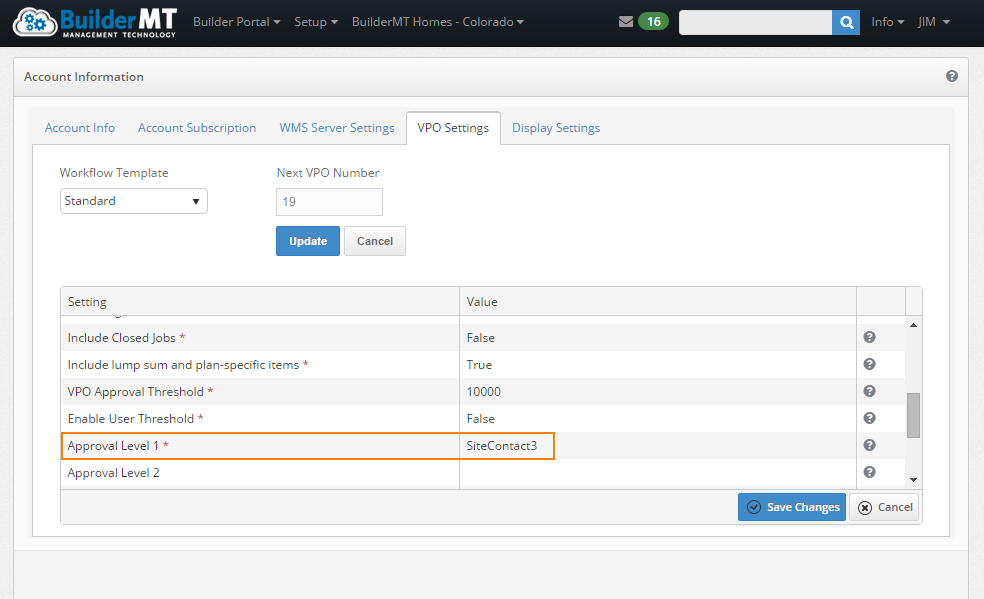
The approval levels one thru six are defined on the VPO settings page of Builder Portal. At least one Approval Level must be defined. However, a Company can choose to define up to six Approval Levels. Each approval level will be set to a site contact.
For example, if approval level 1 is set to use Site Contact 3 in the VPO Settings on the Builder Portal. Then the user assigned as the Site Contact 1 for the Job in WMS on the Site Contacts tab of Job Setup page will be assigned to perform Approval Level 1 on all VPOs which surpass the Threshold.
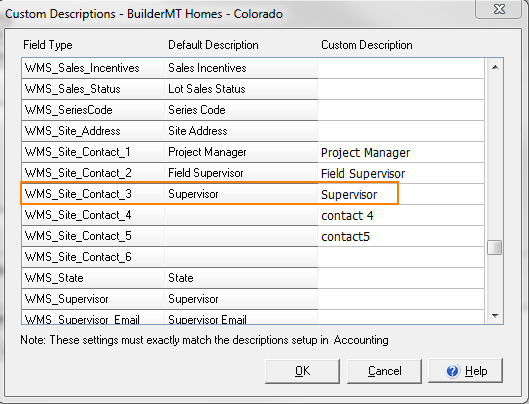
The Custom Descriptions screen in WMS can help you determine which Site
Contact type (Project Manager, Field Supervisor or Supervisor) is Site
Contact 1, 2 or 3. The
Custom Descriptions screen can also be used to change the description
of these fields as displayed within the Site Contacts tab of the Job Setup
screen in WMS, as well as define up to six site contact types.
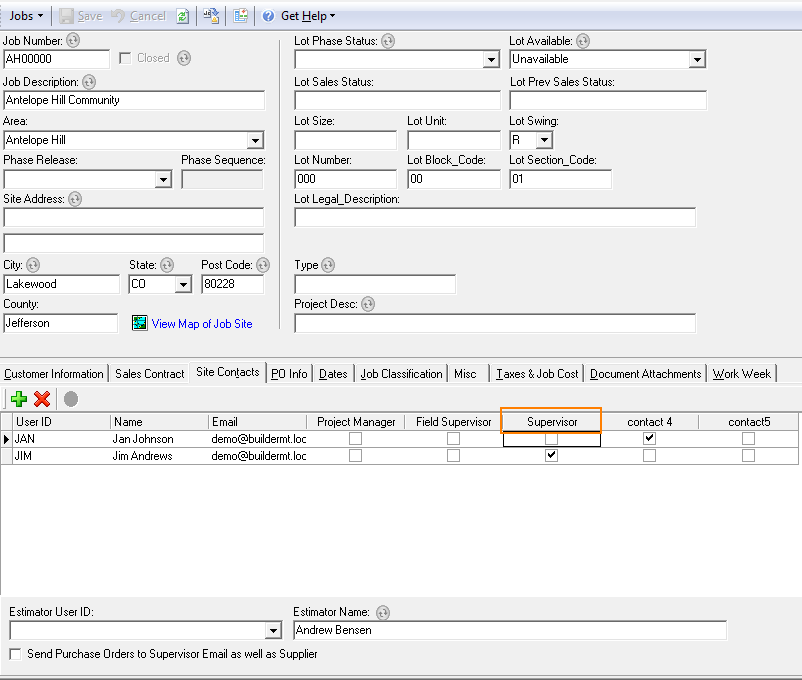
In the above example when a VPO is created over the threshold for the Job AH00000, the user Jim Andrews will be assigned to perform Approval Level 1, as Jim is assigned as Site Contact 3 (which is defined as the Supervisor site contact in WMS Custom Descriptions).
Approving and Denying VPOs as an Approval Level User
VPOs awaiting an Approval Level user’s approval can be approved in two ways. From the VPO List page by selecting the VPO to view the VPO Details page. Or from the ‘Approval Required – Cost Exceeds Threshold’ message received within the Builder Portal Collaboration Inbox. The message will include a link that will open directly to the VPO Details page.
When the VPO is awaiting the user’s approval, there will be two Action buttons on the VPO Details page; Approve and Deny.
After selecting either Approve or Deny, an Add Comment dialog window appears. A user can add a comment, attach documents, and mark the comment as public. If a user marks the comment, Public then the comment is displayed when a supplier reviews the Task History as well as displayed within the messages the Supplier receives regarding the VPO. If the Public checkbox is left unchecked, the comment will only be displayed to internal users.
If multiple approval levels have been setup, once approval level one approves the VPO, the Assigned To will fill in with the user responsible for the next Approval Level. The PO will be created in WMS after the last Approval Level user has approved the VPO. Also at that time, a message will be sent to the Supplier and Backcharge Supplier with the PO document attached.
If any of the approval levels one thru six deny a VPO, it will change the status of the VPO to Denied and no PO will be generated. A message will be sent to the creator of the VPO informing it has been Denied.
|